Dual booting Ubuntu 10.10 Maverick Meerkat and Windows 7 is fairly easy. If you don't believe me, just read on!
Step 1 Get Windows 7
 First thing's first! Ye can't install Windows 7 without an installation disk, can ya? So if your PC did not come with Windows 7 pre-installed, grab a disk here from Microsoft.com. Remember, it burns holes in your pocket.
Step 2 Get Ubuntu 10.10
 Now the fun part begins. You download a complete operating system from a legitimate site, yet you don't pay for it. Because it's FREE (as in beer, ;-) ). Get a copy of the Ubuntu ISO image here. Or if you prefer, download Ubuntu via BitTorrent. BitTorrent is my preferred method because downloads are hash checked automatically. So they are never corrupted.
Step 3 Prepare Windows
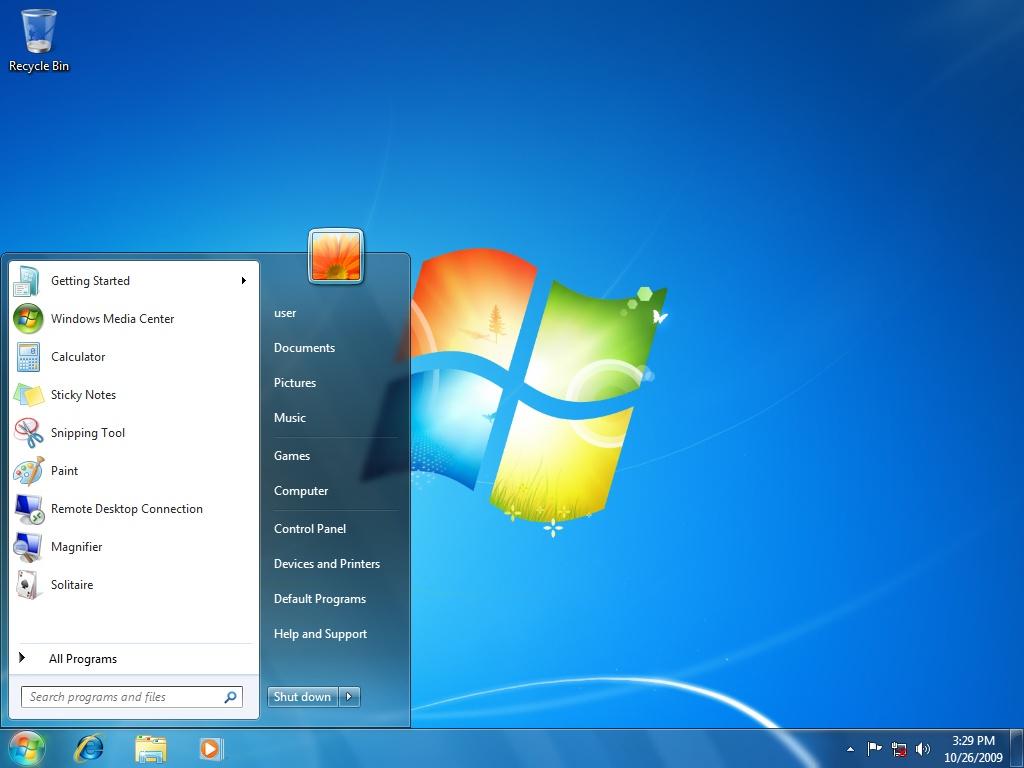 If you have Windows 7 pre-installed, you don't need this step. There is a good HowTo on installing windows right inside Microsoft's site. Here's a link.
Step 4 Prepare Ubuntu
I assume you have a fully working Windows 7 right now. Follow this steps to install Ubuntu:-- Make sure you have at least one partition empty on your hard drive. This is where you are going to put Ubuntu. It is desirable to have more than 2GB of space on this partition.
- Burn Ubuntu ISO image to a disk (easier) OR create a bootable USB stick (harder but Unetbootin makes life easy, :) ). From here on I'll assume you have burnt a disk. Alternatively, see the end of this article for a small HowTo on Unetbootin.
- Enter your BIOS settings page and make sure you have your CD-DVD ROM listed as your first boot device. Save settings and exit.
- Put the Ubuntu disk in tray and restart your PC. You'll see Ubuntu running directly from the disk. You need not worry at this point. Since no changes are made to your PC.
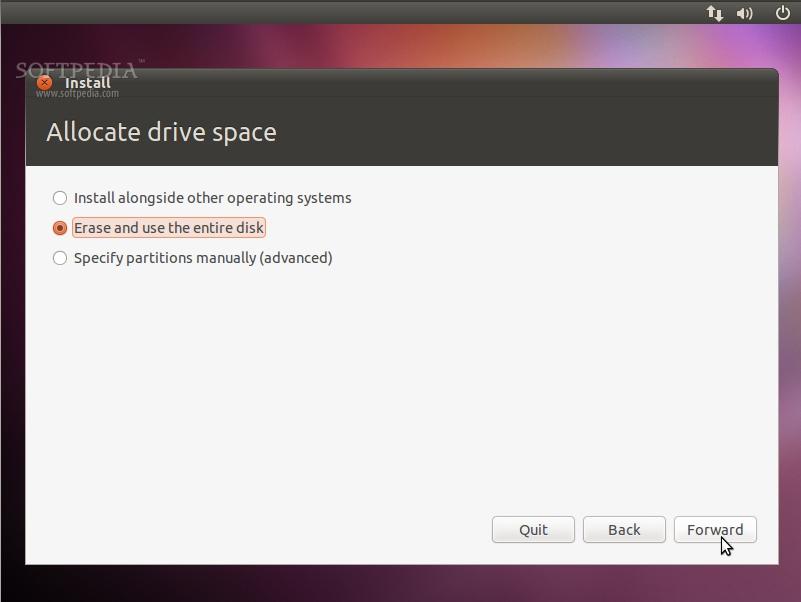
Click on Install Ubuntu and follow on screen instructions until you reach theAllocate Drive Space dialogue. Take a deep breath here.
Step 5 The Tricky Part
Please read the Warnings section first!Now follow the screenshots carefully:-
- Select Specify Partitions Manually (advanced).
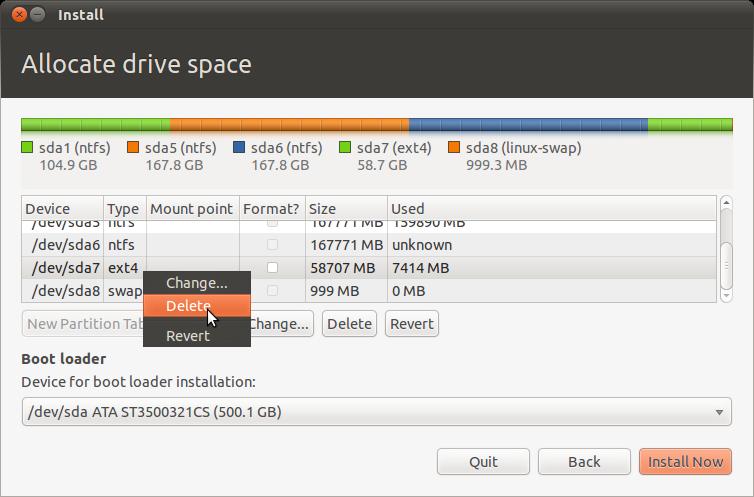
- Delete the partition that is Already Empty! Here /dev/sda7 is the partition I am deleting. This step might be confusing for beginners. Just make sure you remember the size of the empty partition you prepared. I had a 60GB partition, so I am deleting that one. Please don't delete anything unless you are 100% sure. Leave your Windows partition as it is.
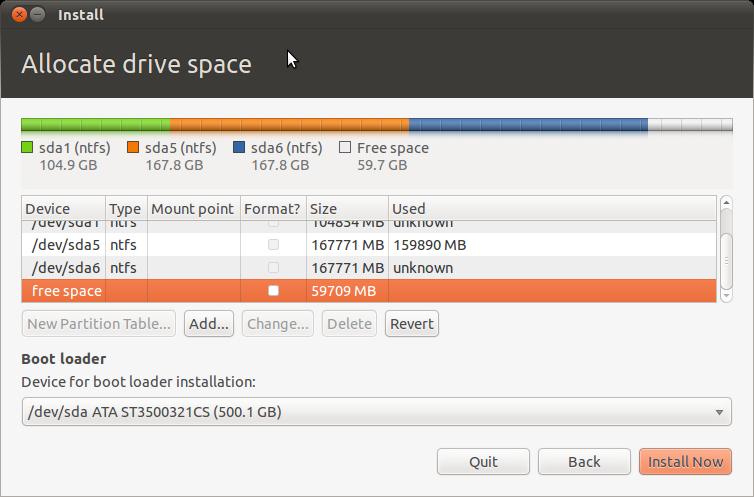
- At this point you'll see some free space.
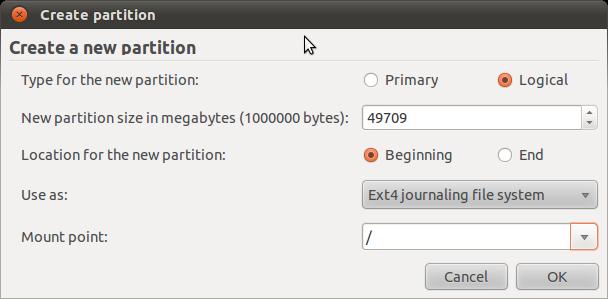
- Click Add while free space is selected. It will show the Create A Partition dialogue. Make sure you leave some space for swap area here. I left 1GB. So, instead of creating a partion of size 59709 MB, I set the size to 49709 GB.
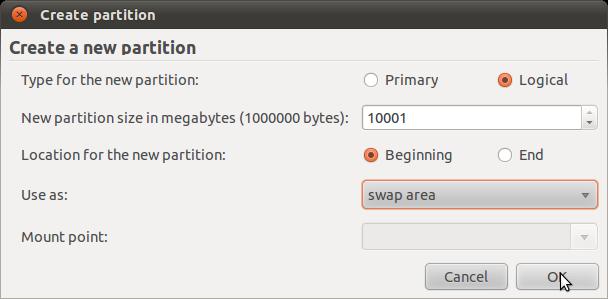
- Now you'll have an Ext4 Partition AND some free space. Select free space and click Add (again!).
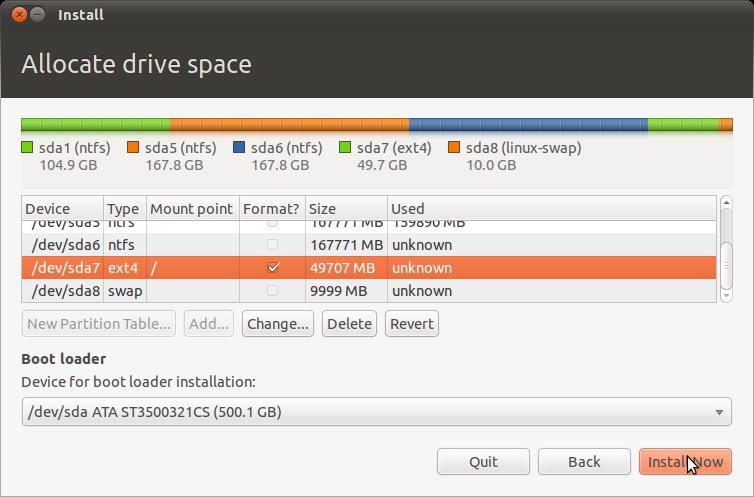
- This is what your partition table should look like. At this stage you should have one Ext4 and one swap partition. Click Install Now.
- The rest part should be fairly easy. You've passed the toughest hurdle.

Warnings
- Please be careful with the previous steps. I am going to partition the hard disk manually. A mistake here can destroy valuable data saved in your hard disk.
- Also, it is assumed that you have at least one empty partition with more than 2GB of space ready. We are going to reformat that partition. And unless you install something similar to Ext2IFS under Windows, you will not be able to see the partition from within Windows. This is normal.
